This release makes it faster for admins to add large groups of learners to a journey, and gives learners a more accurate view of their progress as they complete items. It also lets admins add richer formatting to journey descriptions, alongside a set of smaller improvements and bug fixes.
TABLE OF CONTENTS
- 1. Bulk-adding learners to a journey
- 2. Faster, more accurate journey progress
- 3. Richer formatting for journey descriptions
- Improvements
- Bug fixes
1. Bulk-adding learners to a journey
Admins used to add learners to a journey one at a time. Admins can now upload many learners at once, cutting down repetitive work when setting up larger cohorts.
From a journey's Learners tab, admins select "Add learners" and choose one of three options: adding a single learner, adding a team, or uploading a CSV file.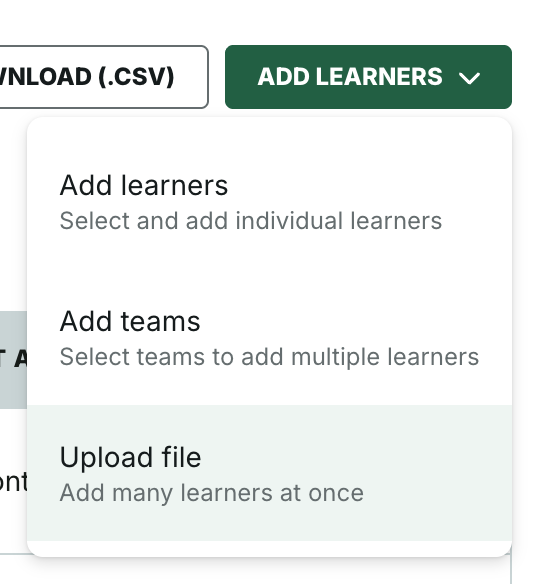
To add learners by CSV, admins:
- Download the CSV template and fill in each learner's email address.
- Upload the file. A file can contain up to 5,000 rows.
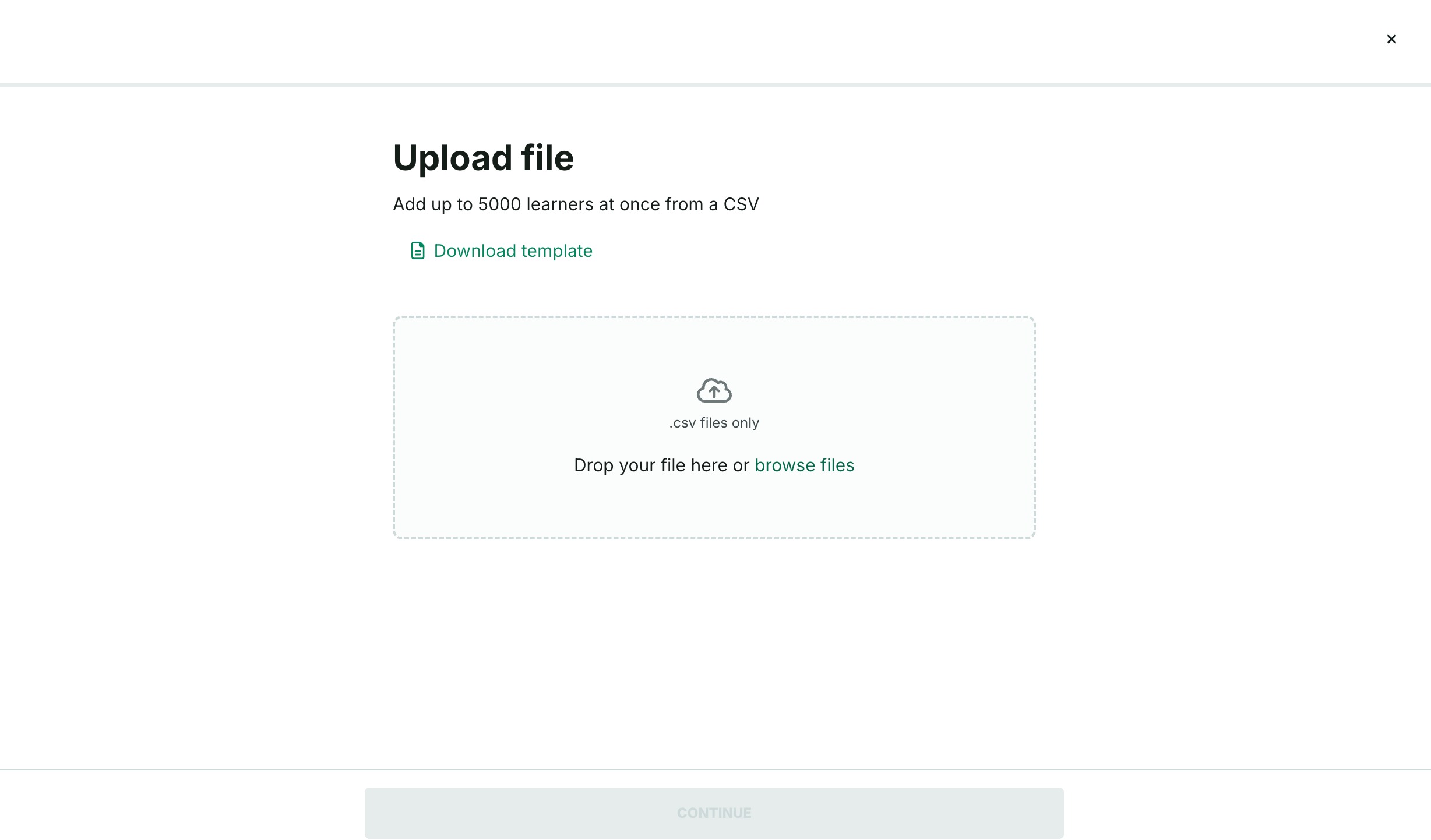
- See an error message if the file itself is invalid — wrong format, wrong columns, or too many rows — and can upload a new file without leaving the window.
- Once the file passes those checks, review the rows, which are sorted into Will be added, Already added, Not on platform, and Errors.
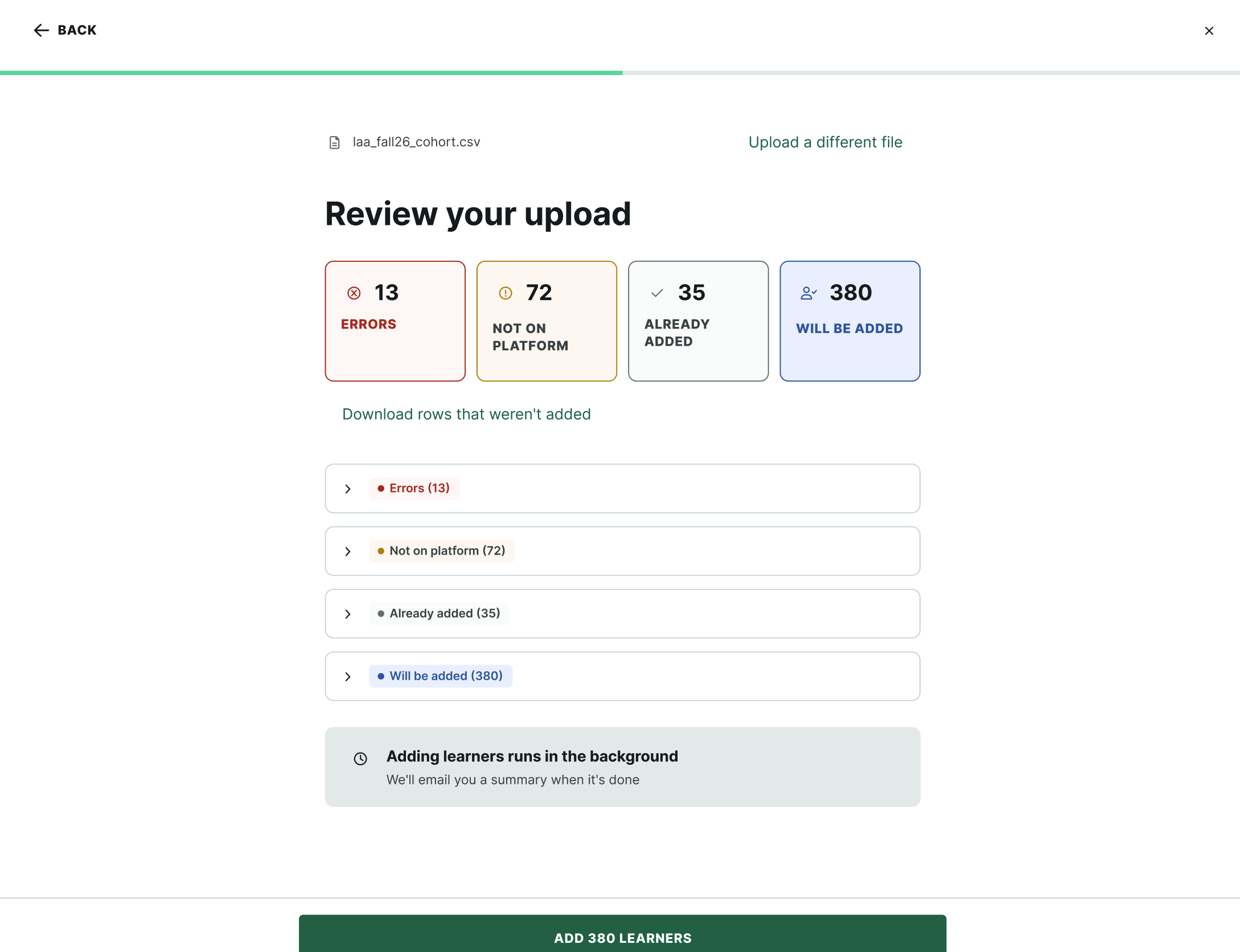
- Download a combined list of rows that were not added, with a reason for each.
- Select "Add learners" to add the valid rows.
Adding a learner to a journey also adds them to the journey's space. If the learner already belongs to that space, nothing changes — no duplicate entry and no error. This applies only when learners are added through the CSV upload option.
The import then runs in the background, so admins do not need to keep the page open. A message confirms the bulk-adding has started, and admins get an email once it finishes, listing which learners were added and which failed, if any.
The one-by-one Add-learner window also now shows an Already added label for learners already enrolled in the journey, and its search field matches by email as well as by name. The chip on each row now reads "Select" or "Selected," and the footer button reads "Add," to keep the wording distinct from the Already added label.
2. Faster, more accurate journey progress
Journey progress now updates as soon as a learner completes any required item, instead of only when a full section is finished. This aims to give learners and admins a more accurate, up-to-date view of progress throughout a journey.
3. Richer formatting for journey descriptions
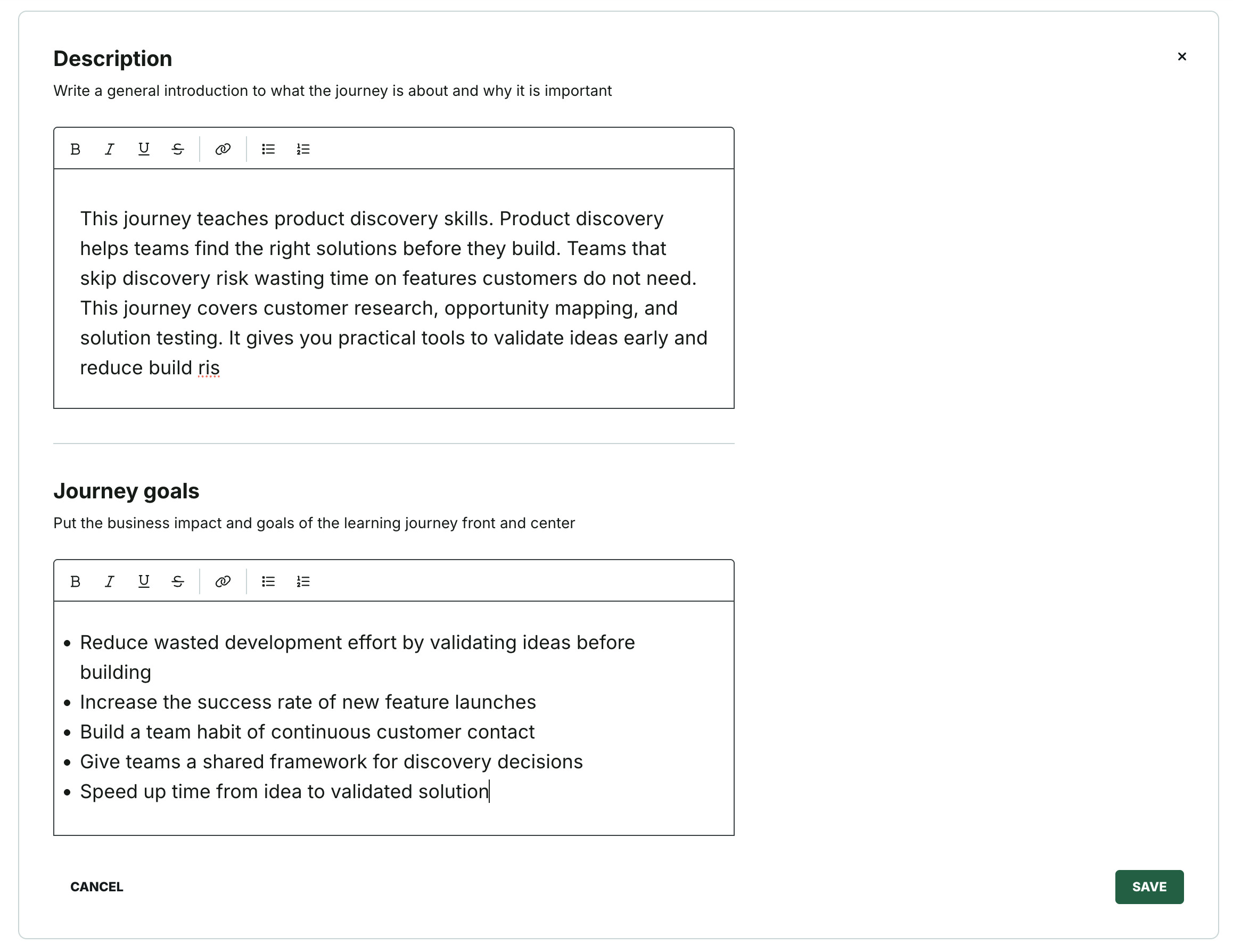
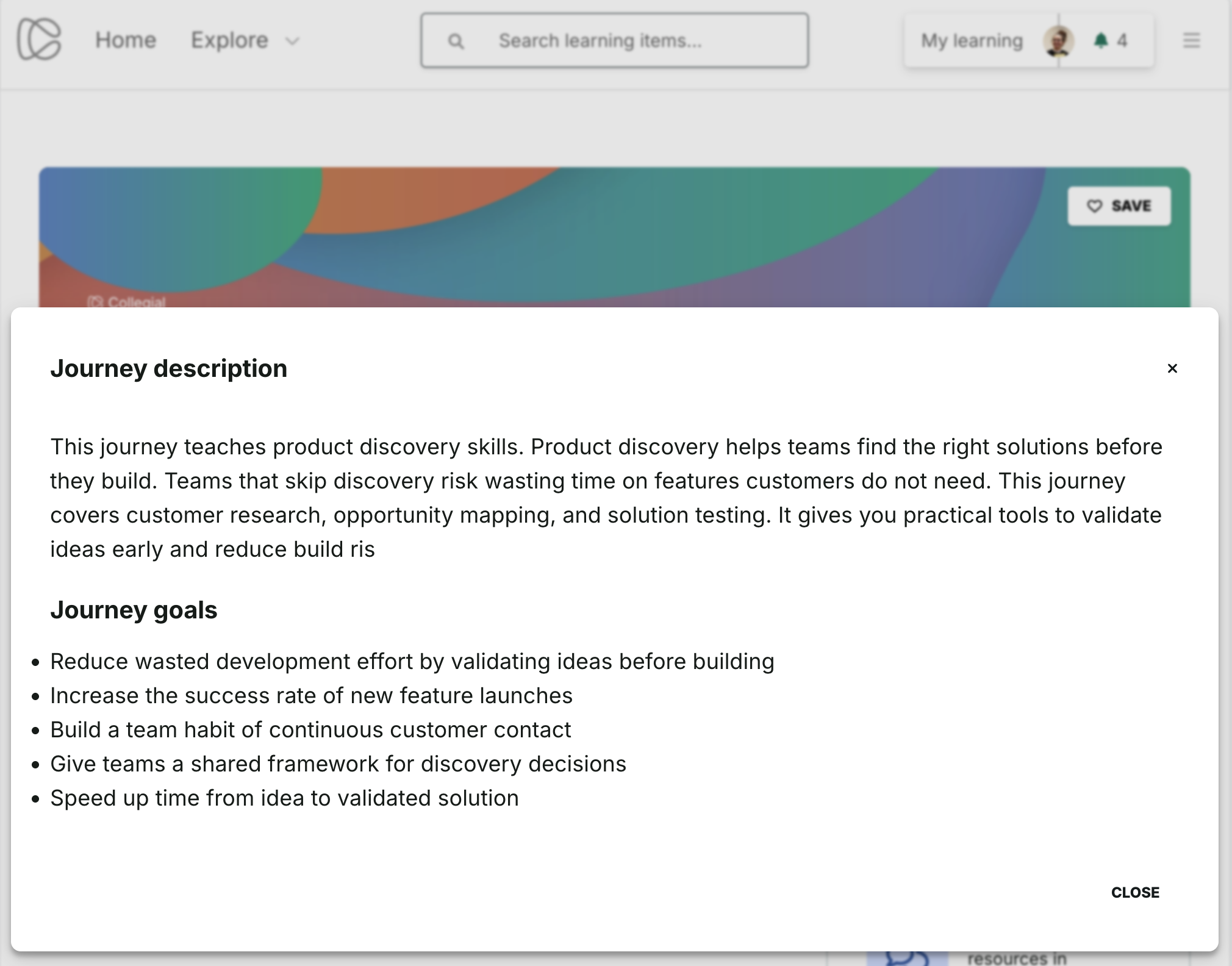
Journey description and goal fields now support bullet points and line breaks, making longer or more structured content easier to read.
For admins
Admins write journey descriptions and goals using bullet points and line breaks in the same fields as before.
For learners
Learners see the formatted description on the journey starting page.
Improvements
Since the July 2026 release, we've also improved the following:
- Admins can now choose to skip the notification email when publishing a journey.
- The Learners tab in Insights, for journeys, sections, and courses, can now be searched by email as well as by name.
- Learners can use a "Back to collection" button to return to the collection a course was opened from.
- When an admin deletes a user, that person's name is now also removed from any certificates they'd already earned, closing a gap in the platform's data-deletion process.
Bug fixes
Since the July 2026 release, we've also resolved the following:
Admin fixes:
- Fixed an issue where downloading a CSV from Insights (Items tab) sometimes failed with an error.
- Fixed an issue where duplicating a journey did not duplicate its certificate.
- Fixed an outdated "Flexible order" label in journey completion settings; it now shows the number of obligatory items needed to complete the journey.
- Fixed an issue where newer Articulate Rise e-learning packages showed "SCORMDRIVER" instead of the package title in the preview.
- Fixed an error message that appeared when opening the Participants tab for some partner content.
- Fixed an issue where a portrait-orientation video could overlap nearby content in the course editor.
- Fixed an issue where a learner could appear more than once across pages in Insights.
- Fixed a broken link on the course edit button in Insights.
- Fixed an issue where a deleted journey remained reachable through a direct link.
- Fixed an issue where department-based conditions in assignment rules did not display, even though the underlying data existed.
- Fixed missing accessible names on some edit icon buttons, so screen readers now announce their purpose.
- Fixed an issue where scheduling a learning item for a specific date without selecting a date could leave the journey editor in a broken state.
Learner fixes:
- Fixed missing image descriptions and incorrect list markup on the journey overview page.
- Fixed carousel buttons and links on the learner home page that were too small to tap reliably.
- Fixed learning catalog filters that could not be operated by keyboard.
- Fixed a missing "skip to main content" link, which forced keyboard users to tab through the full page navigation.
- Fixed a missing main-content landmark on some pages, which stopped screen reader users from jumping directly to the main content.
- Fixed a color-contrast issue on the "Explore" button in the footer.
- Fixed an issue where an assignment page could not be opened if its title contained a forward slash.
- Fixed an issue where an assignment's progress bar stayed at 0% after a learner submitted their work.
- Fixed an issue where a learner could be granted progress on a course page without finishing it.
- Fixed wording in the pre-join overview box, changing "required items" to "obligatory items" for consistency with the rest of the product.
Was this article helpful?
That’s Great!
Thank you for your feedback
Sorry! We couldn't be helpful
Thank you for your feedback
Feedback sent
We appreciate your effort and will try to fix the article