Some learning items in a journey are only available from a certain date. This article explains what you will see when an item is not yet available and what to expect when it unlocks.
TABLE OF CONTENTS
When an item is not yet available
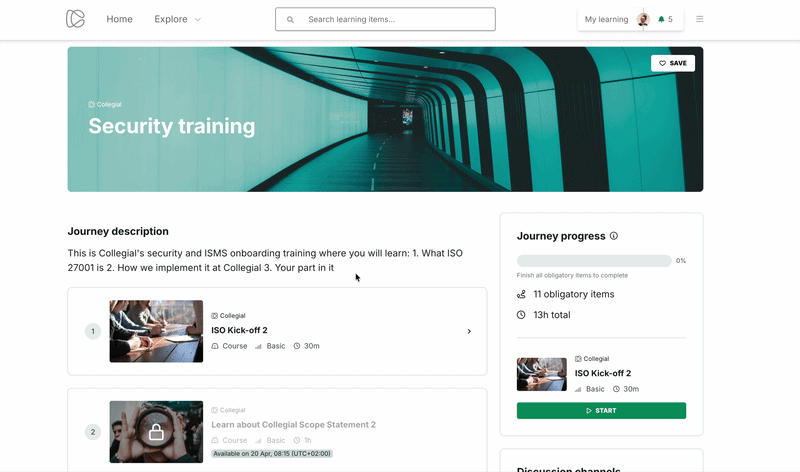
Scheduled items are always visible in the journey outline, but you cannot open them until their scheduled date arrives.
A scheduled item shows:
- A lock icon
- An "Available on" badge with the date it becomes accessible
When you are waiting for your next item
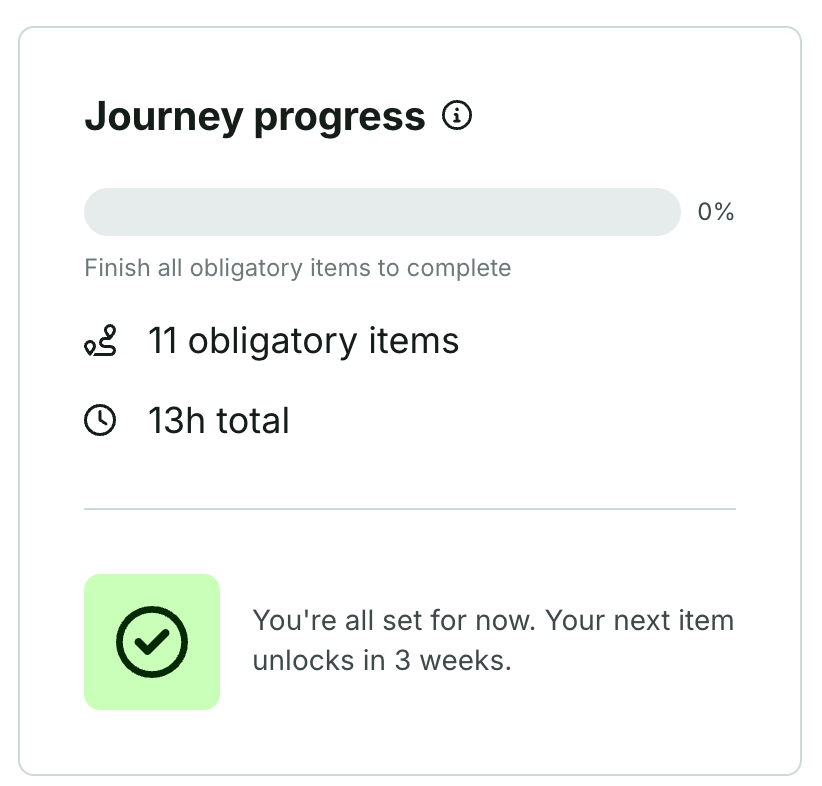
If all your remaining items are scheduled and none are available yet, the journey progress box shows a waiting message — for example:
"You're all set for now. Your next item unlocks in 2 weeks"
The message updates automatically as the unlock date gets closer.
When an item unlocks
Once the scheduled date arrives, the lock icon and "Available on" badge are removed. The item appears like any other available item in the outline and you can open it straight away.
You do not need to refresh the page — the journey overview updates automatically when you return to it.
Related article
Was this article helpful?
That’s Great!
Thank you for your feedback
Sorry! We couldn't be helpful
Thank you for your feedback
Feedback sent
We appreciate your effort and will try to fix the article