Each learning item in a journey can be scheduled individually. Scheduling determines when the item becomes available to learners.
TABLE OF CONTENTS
How to schedule a learning item
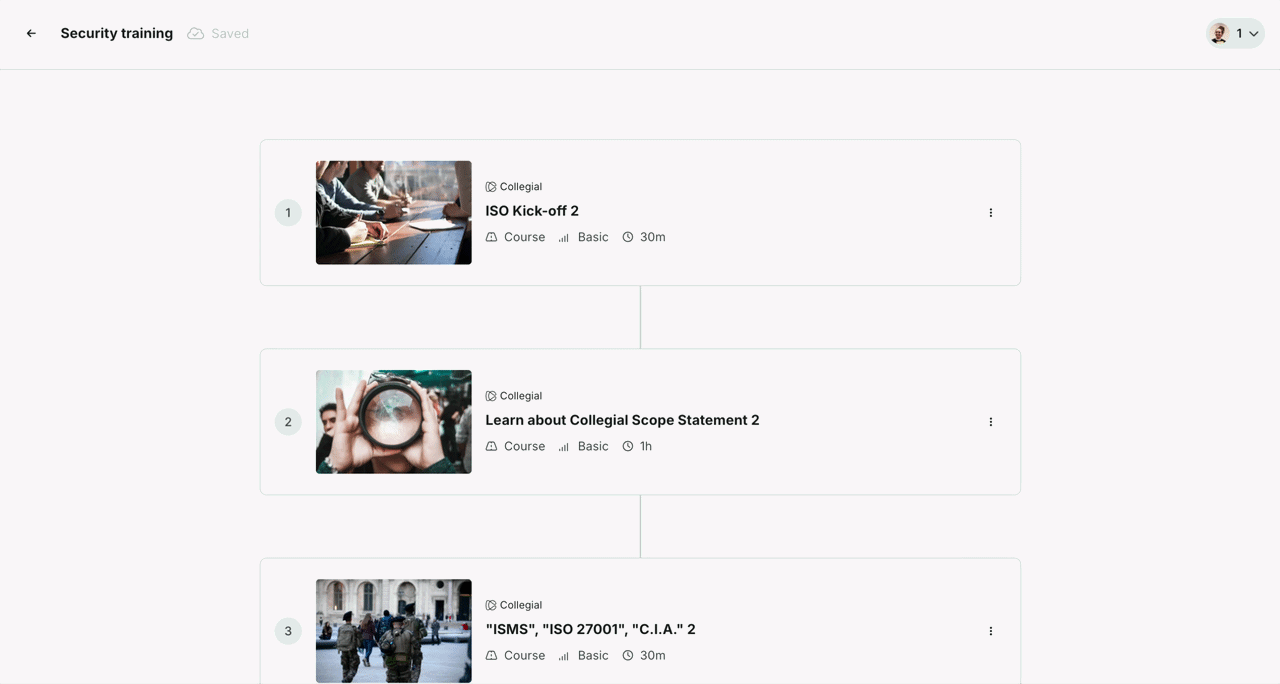
- Go to the journey edit page
- Click "Edit learning items"
- Click on an item card — a panel opens on the right
- Go to the "Scheduling" section
- Choose an availability option from the dropdown:
- "Always available" — the item is accessible as soon as the learner joins the journey
- "After previous item is completed" — the item unlocks once the learner completes the item above it in the journey
- "On a specific date" — the item becomes available at a set date and time; also choose the time zone, date, and time
Admins continue to see an "Available on" badge on scheduled items in the journey edit view for reference.
What learners see
When an item is scheduled and not yet available, learners see it in the journey outline with a lock icon and an "Available on" badge showing the date. The item is visible but disabled.
Once the item unlocks, the lock icon and badge are removed and the item becomes available to start.
Related article
Was this article helpful?
That’s Great!
Thank you for your feedback
Sorry! We couldn't be helpful
Thank you for your feedback
Feedback sent
We appreciate your effort and will try to fix the article