TABLE OF CONTENTS
- How to get a seat in a Live Event
- Find your assigned session
- Switch to another session
- Watch recordings and mark the item as completed
Live Events can be single-session or multi-session. When an event has multiple sessions, you’ll always have one assigned session, and you can switch to another upcoming session directly from the event page.
How to get a seat in a Live Event
To have a seat in a Live Event, you must be part of the Learning journey that includes the Live Event.
This means:
- Join or be enrolled in the Learning journey where the Live Event is added
- Access the Live Event through that Learning journey
If you are not part of the Learning journey, you will not have a seat in the Live Event. You receive an email confirmation when you get a seat in a Live Event.
Find your assigned session
You always have one confirmed session for each Live Event.
To view your session details:
- Open your Learning journey
- Click the Live Event learning item
- Check the left column to see your assigned session details
- Review the date, time, and format (“Online” or “In person”)
For single-session events:
- See the session as confirmed by default
- Skip session-switching options
Switch to another session
If a Live Event includes multiple sessions, you can move to another upcoming session. You can only switch only to sessions that have not yet ended.
To switch sessions:
- Open the Live Event page
- Use the booking widget on the right to view available sessions
- Select another upcoming session
Your new session is confirmed instantly. You receive a new confirmation email with the updated session details.
Watch recordings and mark the item as completed
If a recording is added after a session ends, you can complete the Live Event by watching it.
To complete the Live Event using a recording:
- Open the Live Event page
- Go to the Recording section
- Watch the recording
- Click “Mark as completed”
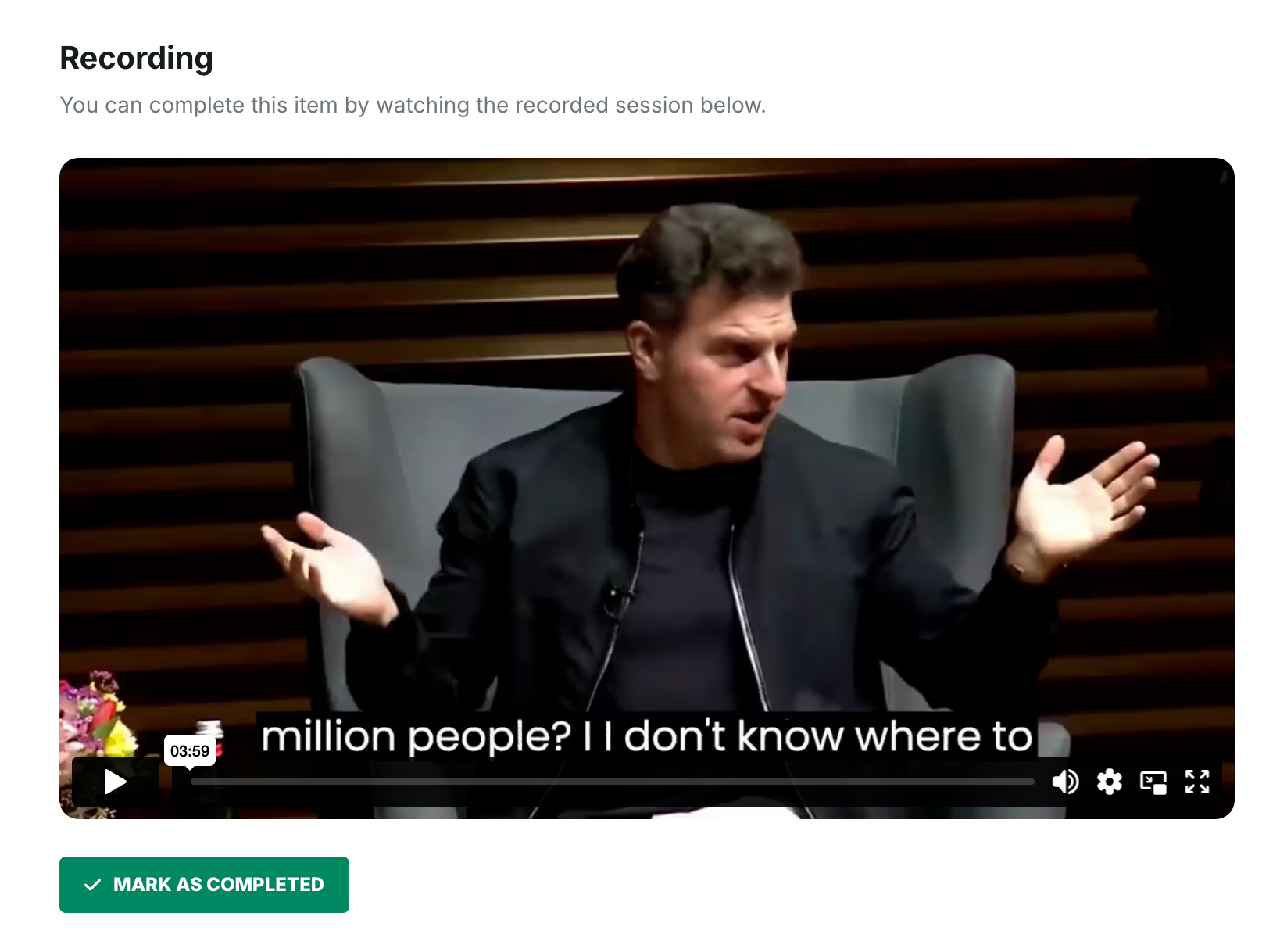
You can mark the item as completed after watching the recording, whether you attended the live session or not.
Related article
For instructions on creating and managing Live Events as an admin, see:
Was this article helpful?
That’s Great!
Thank you for your feedback
Sorry! We couldn't be helpful
Thank you for your feedback
Feedback sent
We appreciate your effort and will try to fix the article