TABLE OF CONTENTS
- Why use Live events?
- Add a Live Event to a Learning journey
- Configure Live Event details
- Add and manage sessions
- Notification and enrollment
- Edit the Live event
- Marking attendance and completion
- Duplicate a Live Event
- Flexible completion
Why use Live events?
Live events add a real-time, interactive component to Learning journeys so participants can connect online or in person. Multi-session setup also lets you run the same event across multiple time slots without creating separate events.
Add a Live Event to a Learning journey
Get started:
- Click the “Journeys” tab
- Choose “New journey” or select an existing Learning journey
- Click “Edit” under “Learning items”
Add the Live Event learning item:
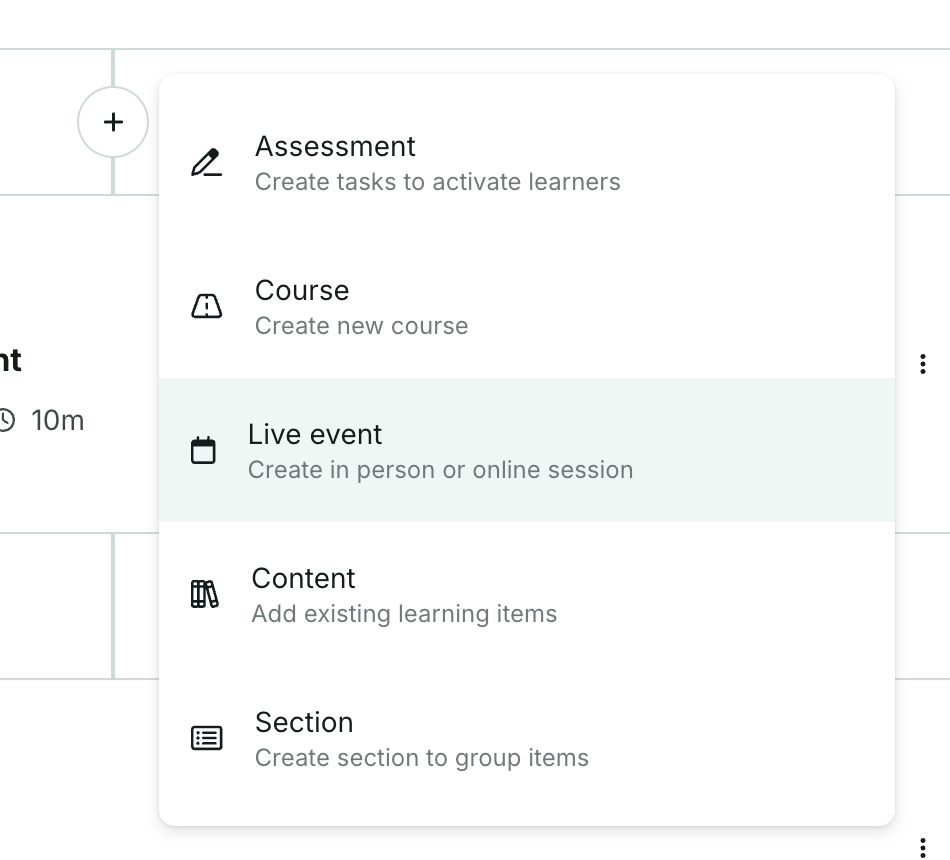
- Click the plus button below the learning items
- Select “Live event”
Configure Live Event details
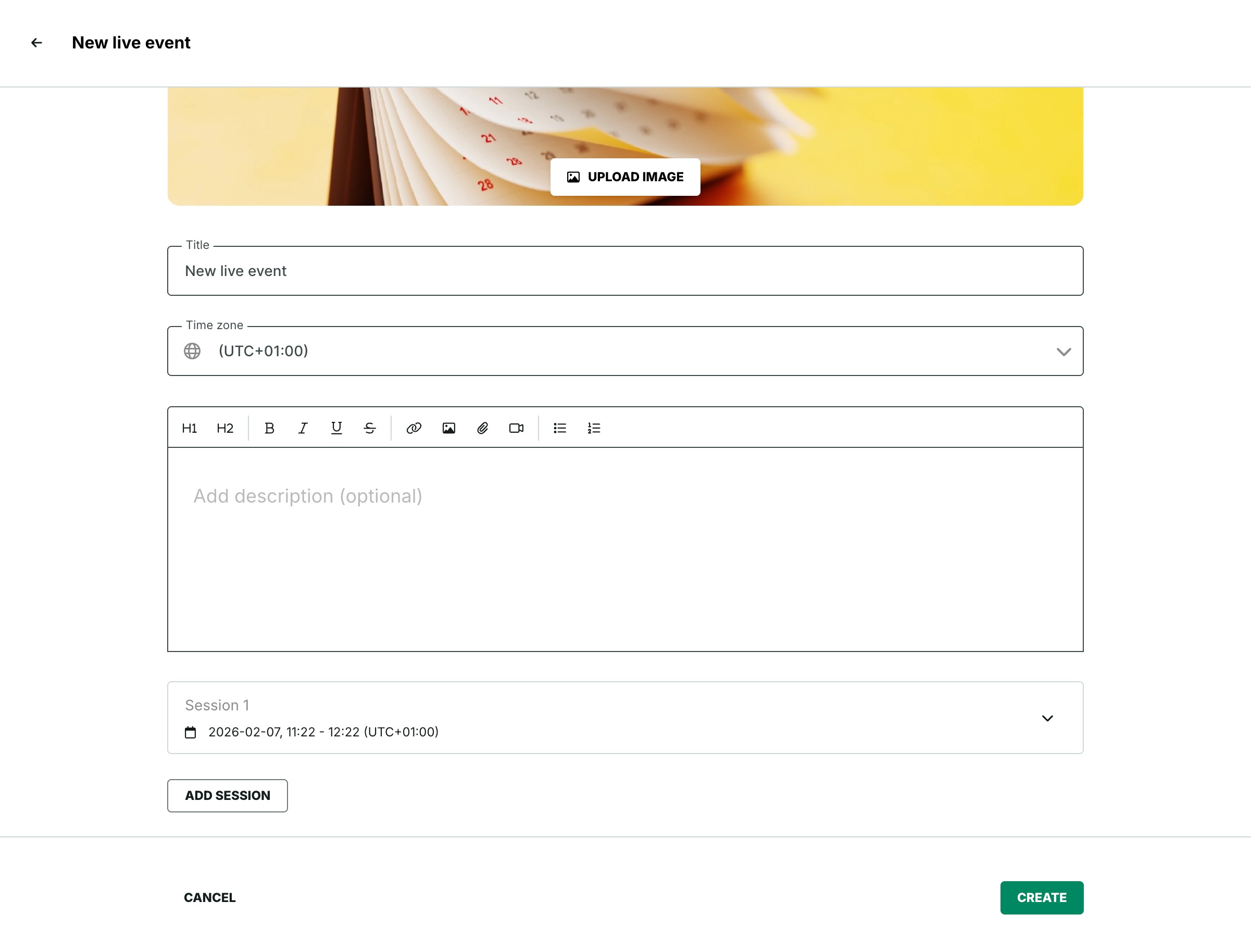
Live Event creation now opens a full-page setup experience.
On the setup page:
- Click “Upload image” to add or replace the cover image
- Enter “Title”
- Add details under the description field
Add and manage sessions
Every Live Event includes at least one session.
Set up Session 1:
- Review Session 1 since it is created by default
- Choose the session format “Online” or “In person”
- Select the session date and time
- Add a meeting link if you chose “Online”
- Add a location if you chose “In person”
Add more sessions:
- Click “Add session” to append a new session to the list
- Note that the system auto-names new sessions (Session 2, Session 3, etc.)
- Expand the session you want to edit
- Collapse other sessions to focus on the one you’re working on
Delete a session:
- Open the session you want to remove
- Delete the session only if its date and time are in the future
Finish setup:
- Click “Create” to create the Live Event
Notification and enrollment
After you publish the Learning journey the system automatically notifies all learners by email about the Live Event.
For multi-session Live Events, learners can switch to another upcoming session from the event page.
Edit the Live event
- Navigate to the Learning journey page
- Click the live event in the “Learning items” list
- Click “Edit” in the right corner
- Make the changes
Enrolled learners will get notified by email about the changes made in the live event.
Marking attendance and completion
- Click "Insights" on the Live Event page to open the attendance and completion view
For past sessions:
- Select the session to view only learners in that session
- Mark attendance as “Attended” or “Didn’t attend”
- Update completion when needed
For future sessions:
- See learners as Enrolled
- Skip attendance and completion actions since they are not available yet
Bulk actions:
- Select learners who share the same action availability
- Apply the bulk action you need
Exports:
- Export learner data with the session date and time included for each learner
Duplicate a Live Event
Duplicating keeps your session structure.
When you duplicate a Live Event:
- Keep the same session setup in the new Live Event
- Exclude session recordings since recordings are not copied
Flexible completion
Designed to better support asynchronous learning, learners also mark live event items as completed by watching a post-event recording, regardless of their attendance status.
Recordings are managed per session.
After a session ends:
- Edit the Live Event
- Open the relevant session
- Add the session recording
Keep in mind:
- Show recordings per session
Use recording actions only after the session has ended when editing the Live Event
Learners can then:
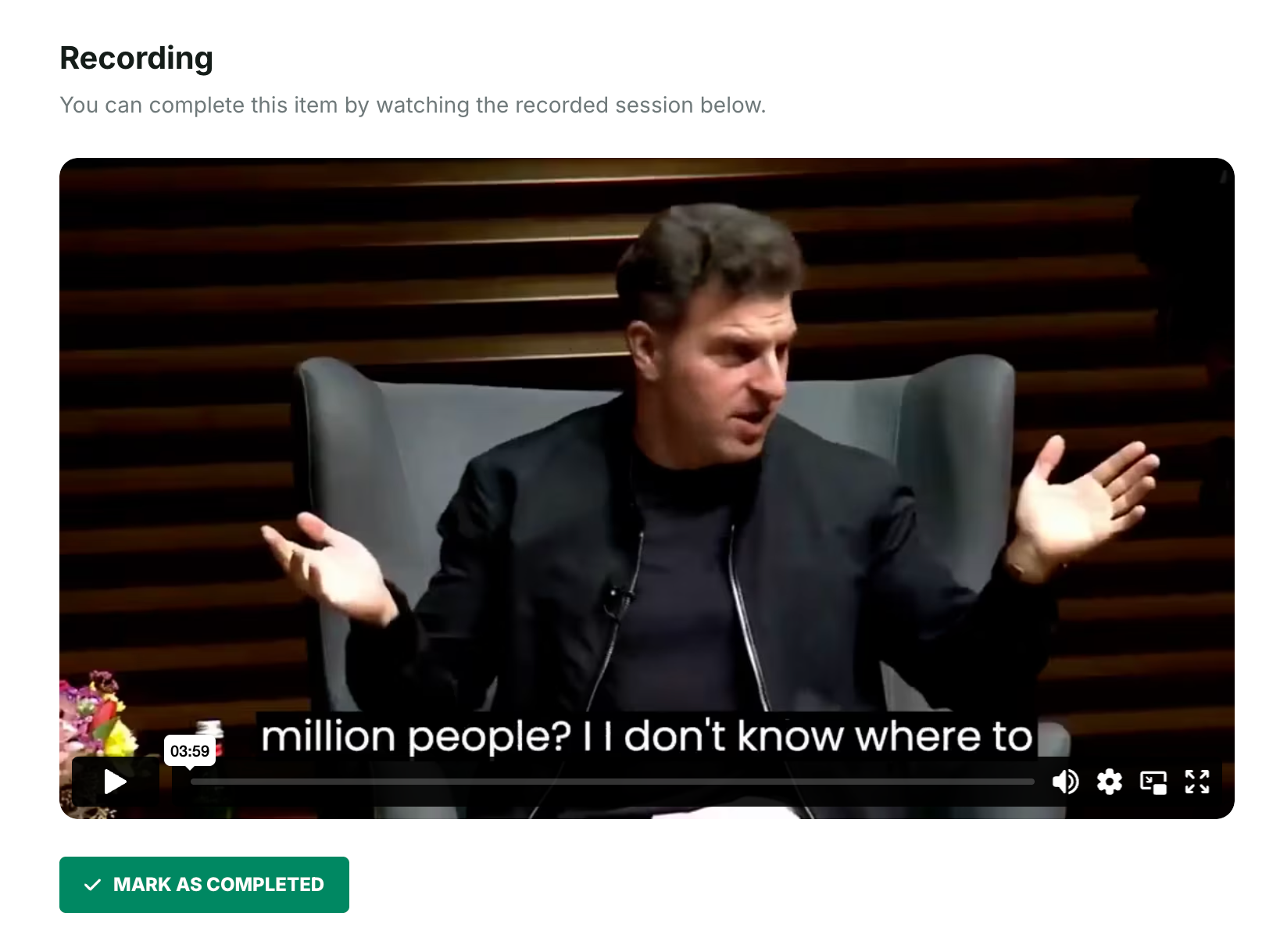
- View the Recording section on the Live Event page
Click “Mark as completed” after watching, whether they attended live or not.
Note that: Recordings are session-specific, so each session needs its own recording attached.
 Admins can also manually mark learners as completed from the Live event insights page using the More menu.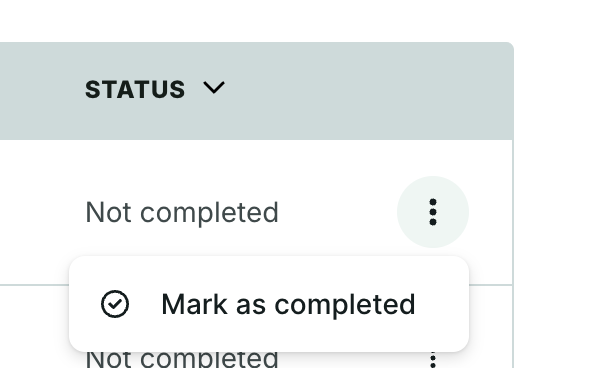
Related article
For guidance on attending and switching sessions as a learner, see:
Was this article helpful?
That’s Great!
Thank you for your feedback
Sorry! We couldn't be helpful
Thank you for your feedback
Feedback sent
We appreciate your effort and will try to fix the article