The journey progress bar shows how close a learner is to completing a journey. Depending on the journey settings, Collegial calculates progress in one of two ways: by completed items or by time invested.
The progress bar moves whenever a learner completes any item — including optional ones. What differs between the two modes is what counts toward the journey being marked as completed.
TABLE OF CONTENTS
Complete obligatory items
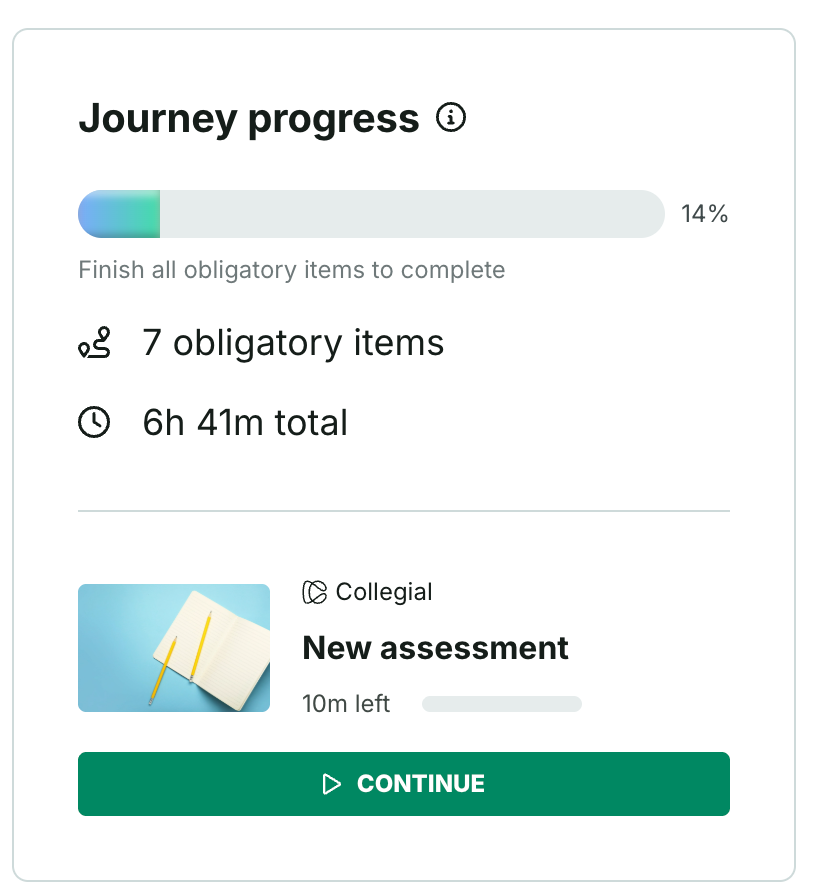
When the creator selects "Finish all obligatory items to complete", the progress bar shows the obligatory item count and the total number of hours to complete, regardless of how many have already been invested.
The journey is marked as completed once the learner finishes all obligatory items.
The progress bar moves whenever a learner completes any obligatory item. Collegial calculates the percentage across all obligatory items in the journey:
Completed obligatory items / total obligatory items
Example: a journey has 10 items, including 2 optional ones
- A learner completes all 8 obligatory items but none of the optional ones — progress shows 100% and the journey is marked as completed
- A learner completes all 6 obligatory items and the 2 optional ones — progress shows 75% and the journey is not marked as completed
- A learner completes 8 obligatory items and 2 optional ones — progress shows 100% and the journey is marked as completed
Note: It is not possible to have more than 100% in the progress bar, even if the learner completed all the obligatory and optional items.
Invest set amount of time
When the creator selects "Invest X hours to complete", admins set an hours target at the journey level. Only time spent in obligatory items counts toward the hours target to complete the journey.
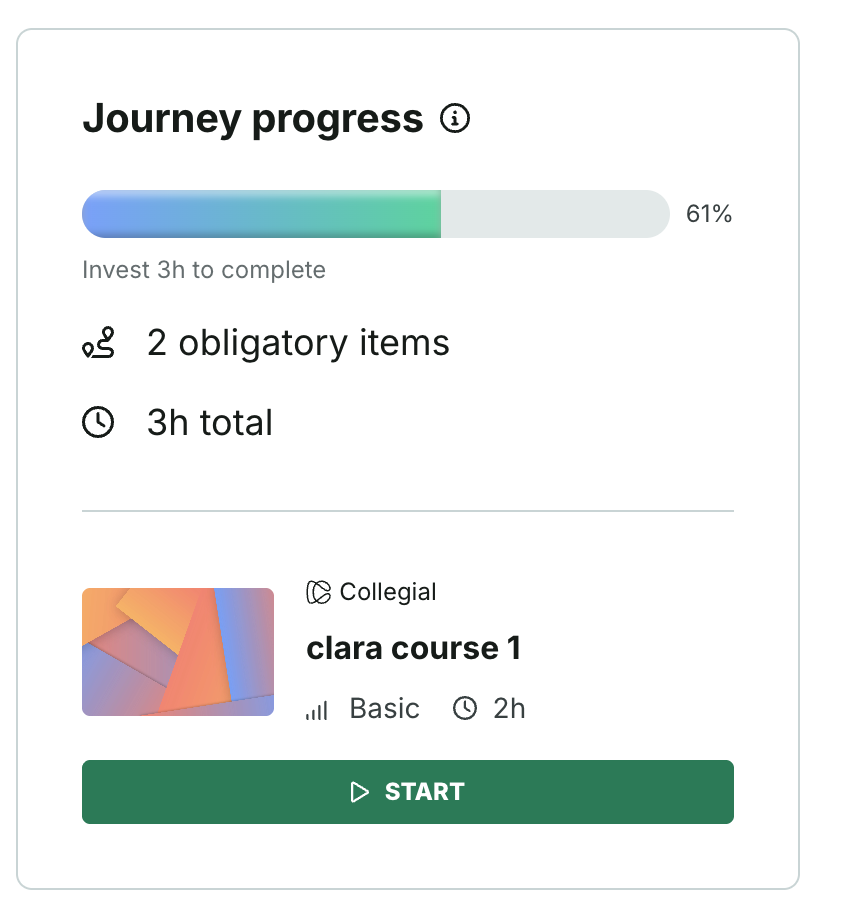
The progress bar moves whenever a learner invests time in any obligatory item. Collegial calculates the percentage across all obligatory time invested:
Total hours obligatory invested / total obligatory hours target
Example: a journey has 10 items, including 2 optional ones, requiring 10 hours to complete
- A learner invests 3 hours in obligatory items and 7 hours in optional ones— progress shows 30% and the journey is not marked as completed
- A learner invests 10 hours in obligatory items — progress shows 100% and the journey is marked as completed
- A learner invests 11 hours in obligatory items — progress shows 100% and the journey is marked as completed
- A learner invests 10 hours in optional items — progress shows 0% and the journey is not marked as completed
Note: It is not possible to have more than 100% in the progress bar, even if the learner completed all the obligatory and optional items.
Known issue
Currently, time spent in optional items is incorrectly counted toward the progress percentage. This means the progress bar may show a higher percentage than expected when a learner invests time in optional items. This does not affect journey completion — only time spent in obligatory items triggers the journey being marked as completed.
Progress bar updates
The progress bar reflects either one of two Journey completion rules, as configured by its Admin in the Journey settings.
The system updates progress and time estimates as learners complete activities. The progress bar updates as soon as the learner completes a required item. On completion, the completion date displays inside the progress container.
In most cases, the progress bar updates within a few seconds, but it can occasionally take longer. If delayed by more than 15 minutes, report a bug.
How sections affect journey progress
Journey progress updates as soon as a learner completes a required item, whether or not its section is finished. A section shows its own "complete" mark once every required item inside it is done.
Example
A journey has two sections. Section 1 contains items A, B, and C. Section 2 contains items D, E, and F.
- Journey progress updates as soon as the learner completes item A
- It updates again after B, and again after C — at which point Section 1 shows as complete
- It updates again after D, after E, and after F — at which point Section 2 shows as complete
Why journey progress may look “stuck”
Progress can still look stuck when Collegial cannot count progress for an item.
This is most common when:
- The journey includes an item where the content provider does not send progress data
For more on how Collegial receives progress from content providers, see Partner course progress and learning effort.
Was this article helpful?
That’s Great!
Thank you for your feedback
Sorry! We couldn't be helpful
Thank you for your feedback
Feedback sent
We appreciate your effort and will try to fix the article