This article explains how to complete an assignment page as a learner. You upload a PDF file and submit it inside the course.
TABLE OF CONTENTS
- What is an assignment page
- Upload and submit your file
- View, replace or remove your file
- After you submit
What is an assignment page
An assignment page asks you to upload a PDF file as part of the course. The page shows the instructions from the course creator and a submission box. You complete the page only after you select "Submit".
Upload and submit your file
- Read the instructions on the page
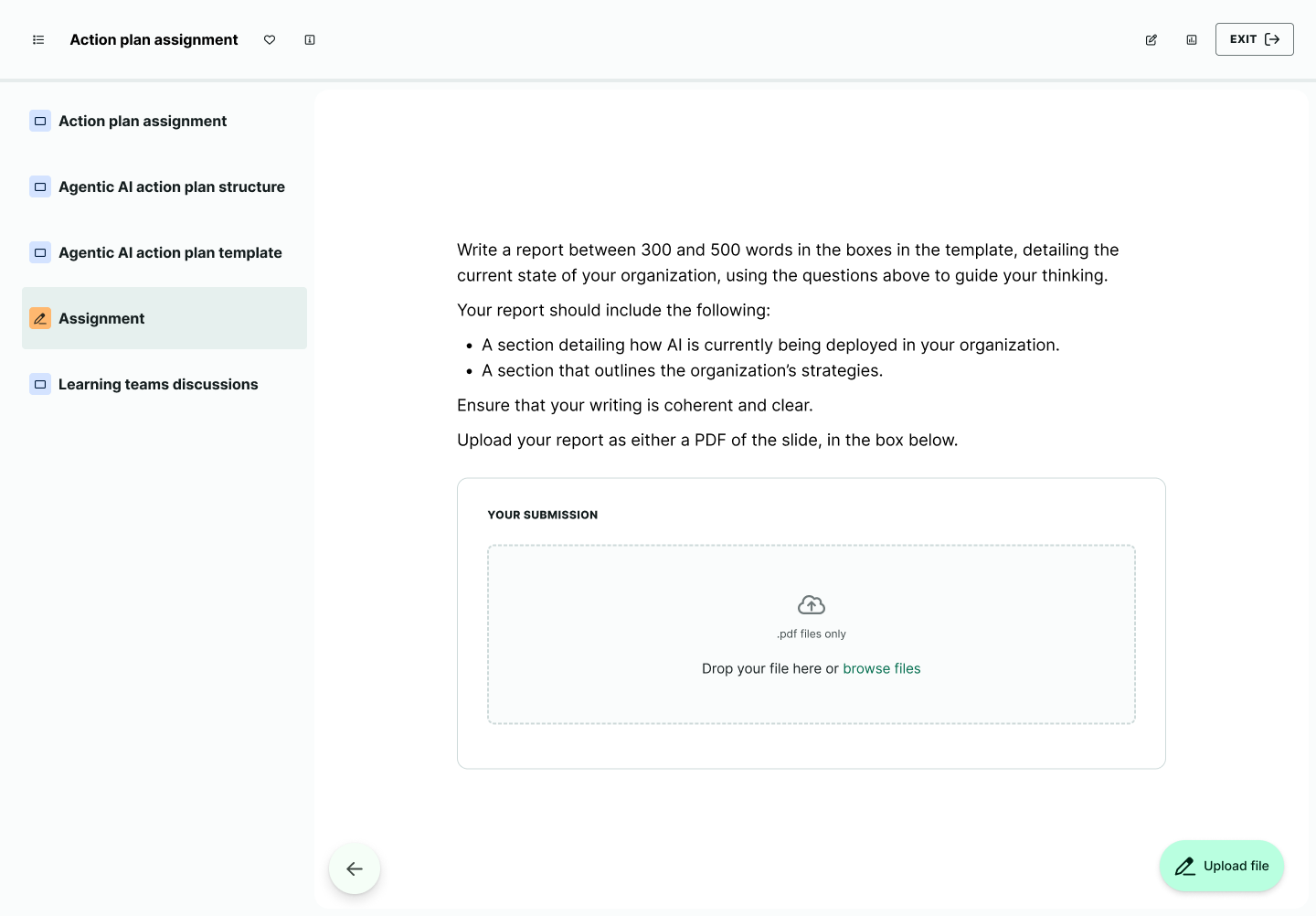
- Drag your PDF file into the submission box, or click "Browse files"
- Wait for the upload to finish
- Click "Submit"
Uploading a file does not complete the page. You must select "Submit". Click "Submit" before you leave the page.
The floating button on the page shows your next step:
- "Upload file" shows before you upload a file
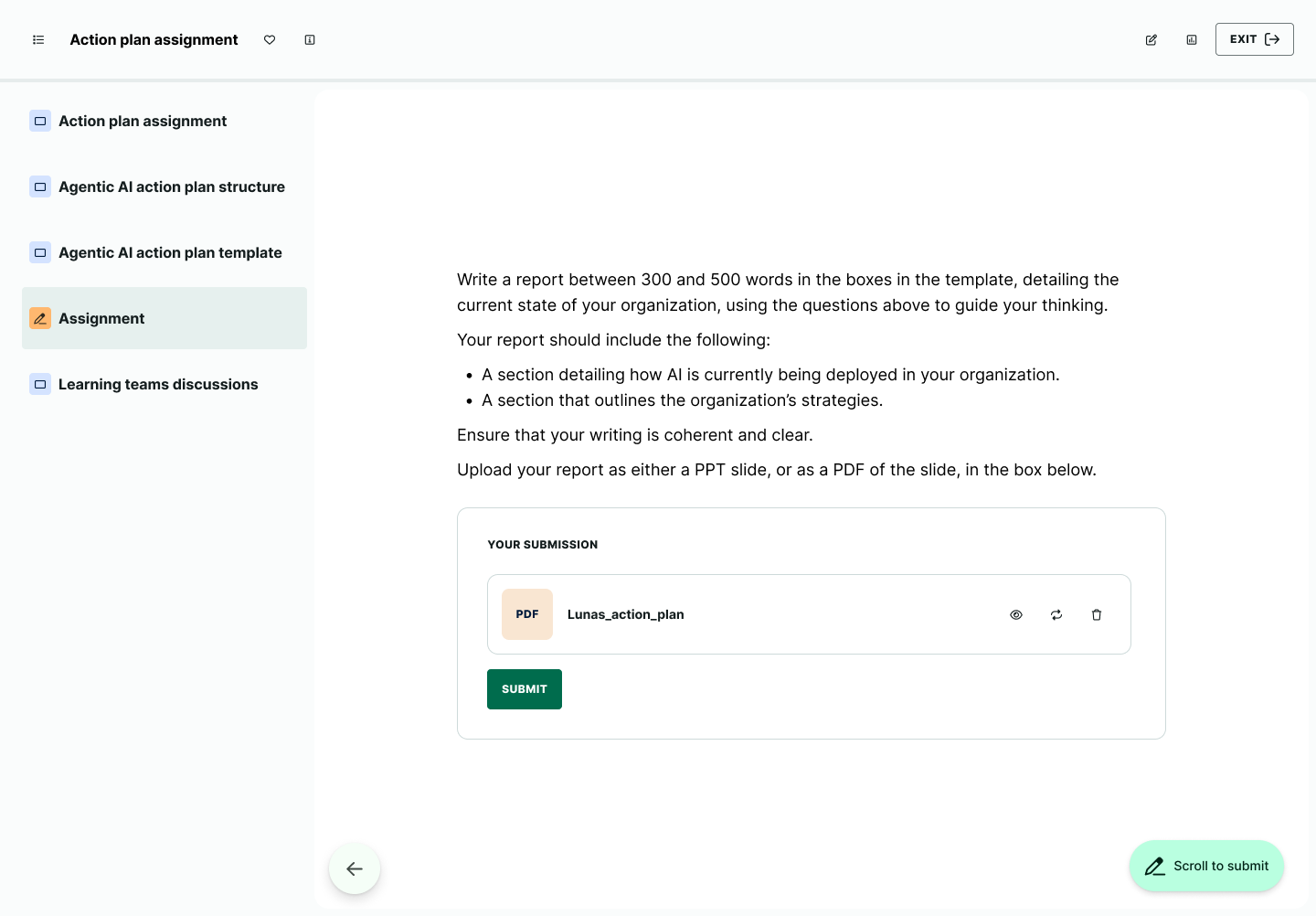
- "Scroll to submit" shows after you upload a file but before you submit
- "Next" shows after you submit
When you click "Scroll to submit", the page scrolls to the "Submit" button and highlights it.
View, replace or remove your file
After you upload a file, three buttons show in the submission box. Hover over a button to see its name.
- "View" opens the file in a new browser tab
- "Replace" lets you choose a new file
- "Remove" clears the file and returns the box to its empty state
After you submit
After you submit, the file shows the time you submitted it.
You can still:
- Select "View" to open the file in a new browser tab
- Select "Replace" to upload a new file
You can no longer select "Remove".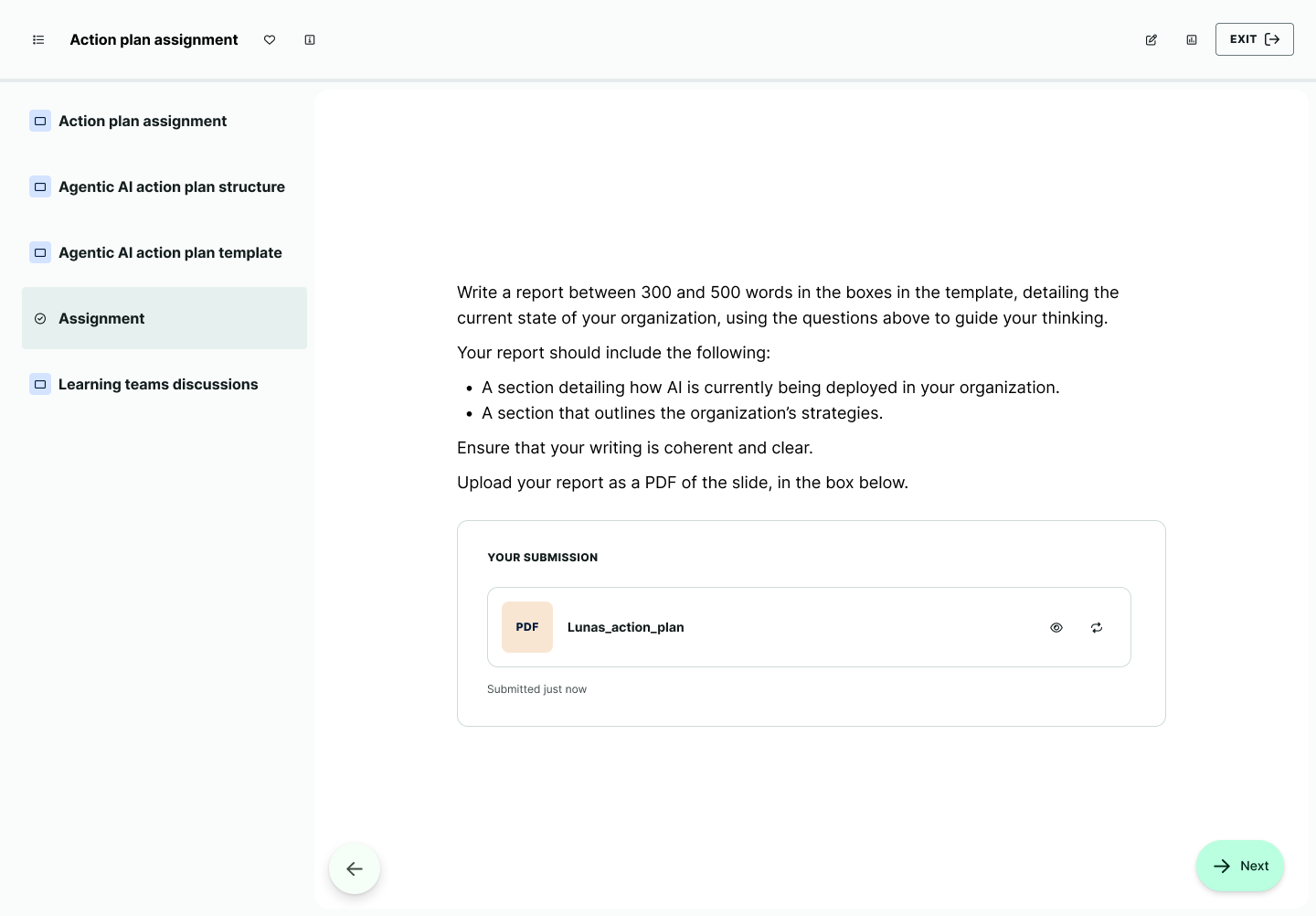
You stay on the page after you submit. To move on, click "Next" or use the left navigation. The platform does not move you on automatically.
Was this article helpful?
That’s Great!
Thank you for your feedback
Sorry! We couldn't be helpful
Thank you for your feedback
Feedback sent
We appreciate your effort and will try to fix the article