TABLE OF CONTENTS
- Why use Courses?
- Course structure
- Types of pages
- Create a course
- Add pages to a course
- Adding blocks to pages
- Edit course settings
- View course as a learner
- Analyzing course data
Why use Courses?
Courses consist of individual pages, much like slides in a powerpoint presentation and modules and is an easy way to create content. Each page serves as a building block for the course content. There are several page types available, each tailored to different learning objectives. Courses can be included in Learning journeys and Collections.
Course structure
Modules
Modules divide course content into manageable sections, similar to book chapters. Within each module, you can add different types of pages, helping structure content for a better learning experience.
Pages
A page is a way to add content. Within a page, you can have different content blocks, e.g., texts, videos, files or images.
Types of pages
Page
The page page type allows you to add any type of content. It’s the most versatile type of page, suitable for delivering foundational information, instructions, or supporting materials.
Quiz
The quiz page type allows you to add questions and helps assess understanding as well as reinforce key concepts. It can combine regular content with interactive question blocks to create an engaging experience for learners. Learn more about quizzes here.
Reflection
The reflection page type prompts learners to pause, reflect, and provide thoughtful responses that will be visible to fellow learners as soon as they added their reflections. These pages encourage critical thinking by asking learners to articulate insights and feedback, promoting a deeper understanding, learning application and sharing. Learn more about reflections here.
Create a course
As an Admin, navigate to Content > Create > Course.
In the modal that appears, entering a Title and Description is mandatory in order to be able to proceed to adding pages and/or modules by clicking Create.
Add pages to a course
To add pages to a course:
- Click the plus button
- Choose the type of page you want to add from the dropdown menu
- Customize the page content to meet your learning objectives
Note that, as per your convenience, you may also choose to duplicate any existing course page. This is done by clicking the ellipsis to the right of the course page in question:
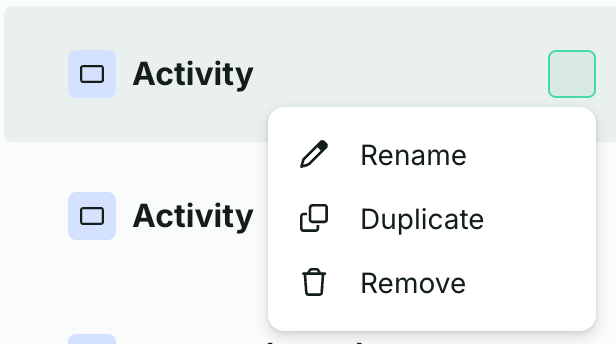
Duplicating course pages aims to allow admins to speed up authoring by letting them reuse structures, reduce repetitive setup, and iterate safely. The duplicated page is added directly below the original one.
Adding blocks to pages
To add content to any page:
- Type “/” and click “Enter”, or select a block option from the menu
- Customize the block as needed
Edit course settings
To edit course settings:
- Click “Settings” located at the top right corner of the course page
- In the settings menu, you can:
- Edit the course image, title, and teaser to ensure they accurately reflect the course content
- Estimate the time needed for learners to complete the course
- Adjust the visibility
- Set the difficulty level
- Duplicate the course
- This feature aims to allow admins to speed up authoring by letting them reuse structures, reduce repetitive setup, and iterate safely. Note: when you use this feature, the system clones the selected course's content and structure, but not any of the learner-generated data (reflections, quiz answers) nor the participants list. Using this feature brings you to the edit course page of the duplicate for adjustments
- Delete the course
View course as a learner
To view how the course appears to learners:
- Click “View” on the course editor
Clicking “View” opens the course in learner mode, allowing you to experience what the course will look like to a learner.
A course ends when the learner completes all required pages. There is no additional step at the end.
Analyzing course data
To analyze data from courses:
- Click “Insights” on the course
- Review data under Insights for a clear understanding of the course engagement:
- Started: The number of participants who began the course
- Completed: The number of participants who completed the course
- Average progress: The average percentage of course completion across all learners
- Completion rate: The percentage of participants who completed the course
The Pages table displays page titles, types (e.g., Quiz, Reflection), and progress data, while the Participants table provides individual learner details, including start date, progress, and current status.
These insights will help you optimize content and improve learner outcomes.
Was this article helpful?
That’s Great!
Thank you for your feedback
Sorry! We couldn't be helpful
Thank you for your feedback
Feedback sent
We appreciate your effort and will try to fix the article