An assignment page lets learners upload a PDF file inside a course. This article is for admins who build courses.
TABLE OF CONTENTS
- What is an assignment page
- Add an assignment page to a course
- Edit an assignment page
- Duplicate or remove an assignment page
- See assignment completion
- Known limitations
What is an assignment page
An assignment page is a course page type, like "Page", "Quiz" and "Reflection". You write the instructions. Learners upload a PDF file and select "Submit" to complete the page.
The page has a fixed banner that reads "Learners will complete this activity by uploading a PDF file." You write all other content with the normal content editor.
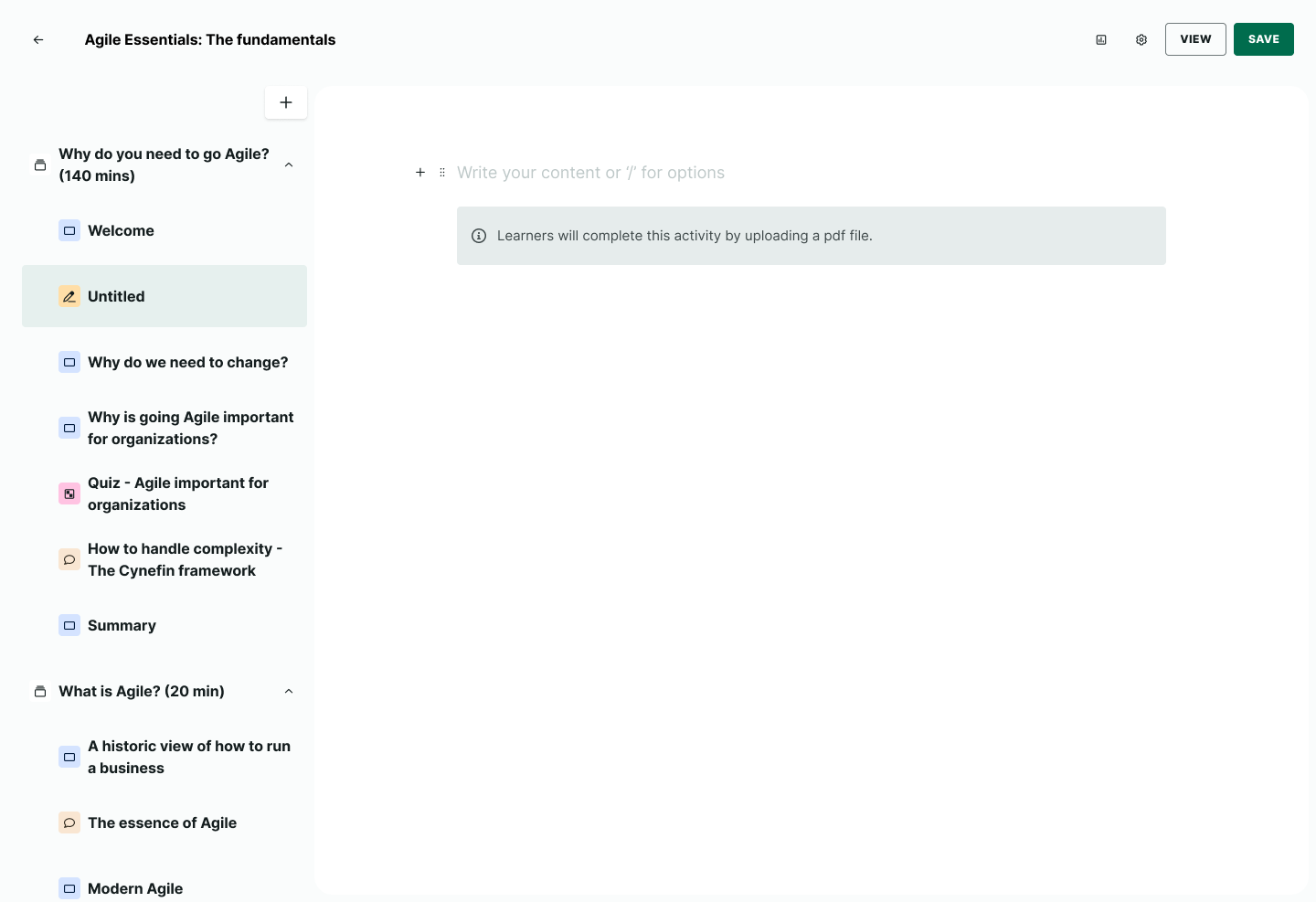
Add an assignment page to a course
- Open the course in the course editor
- Click the plus button
- Select "Assignment" from the dropdown menu
- Write the instructions for learners on the page
- Click "View" to check how the page looks to learners
Edit an assignment page
Edit the page with the normal content editor.
When you edit a page after learners submit:
- Learners who already completed the page stay completed
- Learners who have not completed the page see the updated content
Duplicate or remove an assignment page
To duplicate an assignment page:
- Click the ellipsis to the right of the page
- Select "Duplicate"
The copy appears directly below the original. It keeps your instructions. It does not keep any submissions.
To remove an assignment page:
- Click the three dots button in the left navigation
- Select "Remove"
See assignment completion
Assignment data appears in Course Insights. There is no separate insights page.
- Click "Insights" on the course
- Find the assignment page in the "Pages" table
The "Pages" table shows the page type as "Assignment". For each assignment page, the table shows:
- The number of learners who have not started
- The number of learners in progress
- The number of learners who completed the page
- The completion rate
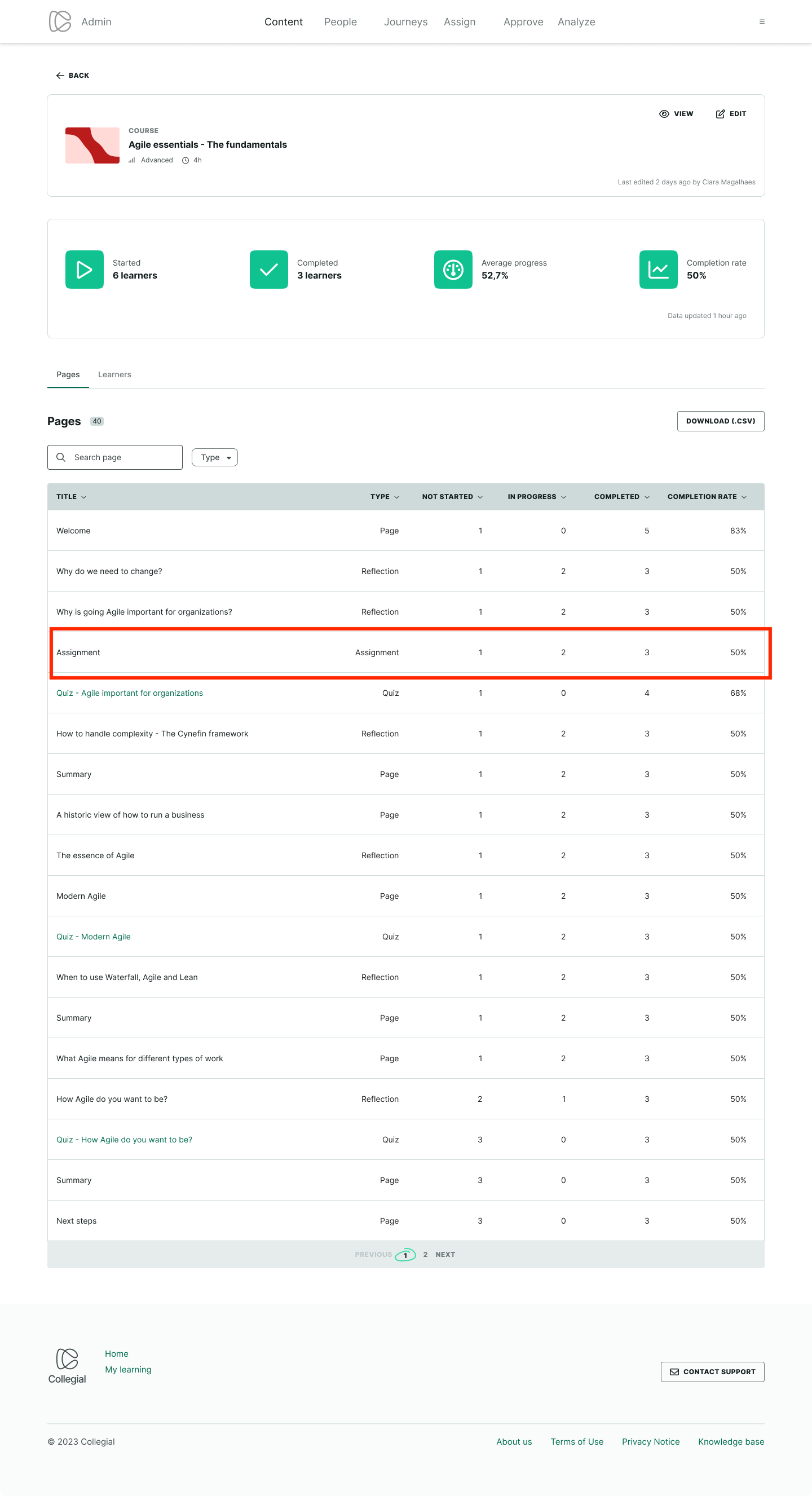
To download the data:
- Click "Download CSV" on the "Pages" table
The file lists every learner across every page in the course. It has these columns: page title, type, learner name, email, team, started, completion status, completion date and last activity.
When a learner replaces a submitted file, the completion status remains unchanged. The last activity date updates.
Known limitations
- Assignment pages accept PDF files only
- Learners can upload files up to 200MB
- Assignment pages do not grade, score or give feedback on submissions
Was this article helpful?
That’s Great!
Thank you for your feedback
Sorry! We couldn't be helpful
Thank you for your feedback
Feedback sent
We appreciate your effort and will try to fix the article