Sections group learning items into chunks inside a journey. Use them to break a long journey into stages, reduce cognitive load for learners, and give yourself cleaner control over scope and pacing.
TABLE OF CONTENTS
- Adding a section
- Adding items to a section
- Moving items between sections or back to the main outline
- Marking a section optional
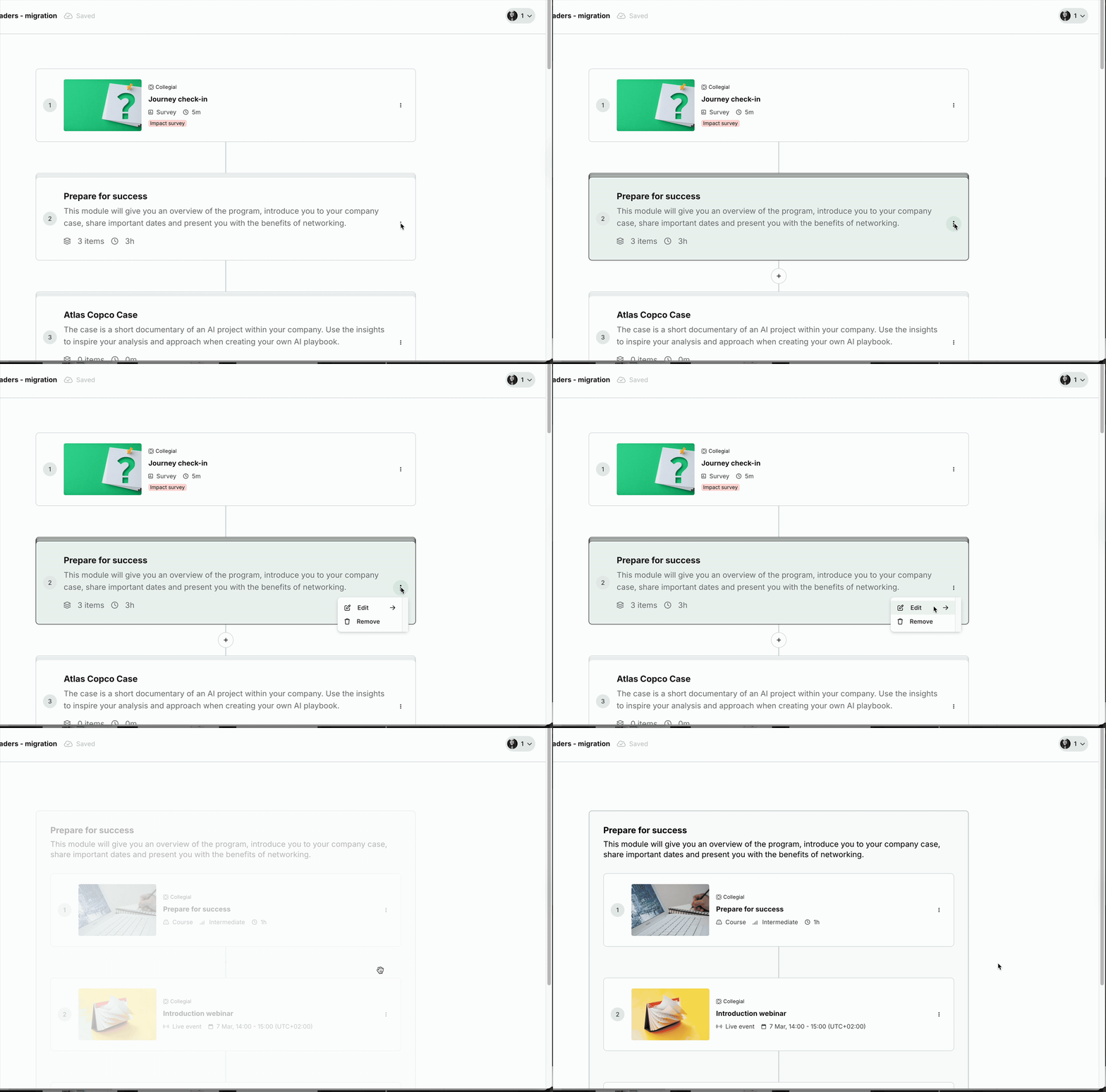
Adding a section
- In the journey editor, click "Add section"
- Enter a name for the section
Adding items to a section
- Open the section and click "Add items"
- Search for and select the content you want to include
- If you see "Added" next to an item, it already exists somewhere in this journey — you cannot add the same item twice
- To use the same content in more than one section, duplicate the item first, then add the duplicate
Moving items between sections or back to the main outline
- Locate the item in the journey outline
- Open the three-dots menu on the item card
- Select "Move to" and choose the destination — a section, or the main journey outline
Marking a section optional
- Open the three-dots menu on the section card
- Toggle "Optional" on
Learners can still see and complete optional sections, they just don't affect the journey completion percentage.
Was this article helpful?
That’s Great!
Thank you for your feedback
Sorry! We couldn't be helpful
Thank you for your feedback
Feedback sent
We appreciate your effort and will try to fix the article